Endless guide
Endless is a personal assistant. You tell it what happened or what needs doing, and it puts things where they belong: spending into money, meetings into the calendar, a workout into body. Then it reminds, counts and nudges on its own. Everything you see on the screens can be said by voice, and everything you can say can be done with a finger.
You can go through this guide in 15 minutes. Read it in order or jump to the section you need.
Put Endless on your phone
Endless works as an app with an icon on your home screen. Our Telegram bot gives you the link: open @endless_ai_bot, tap Start, then “Open the app”. No Telegram? You need it for the first sign-in: get it at telegram.org.
The app shows the same steps itself: the first-day card, and later Settings → Help → “Add to home screen”.
iPhone
On iPhone the icon is added from Safari.
Did the link open inside Telegram? Tap the Safari icon at the bottom right, or ⋯ at the top → Open in Safari. In Safari, tap Sign in once more.
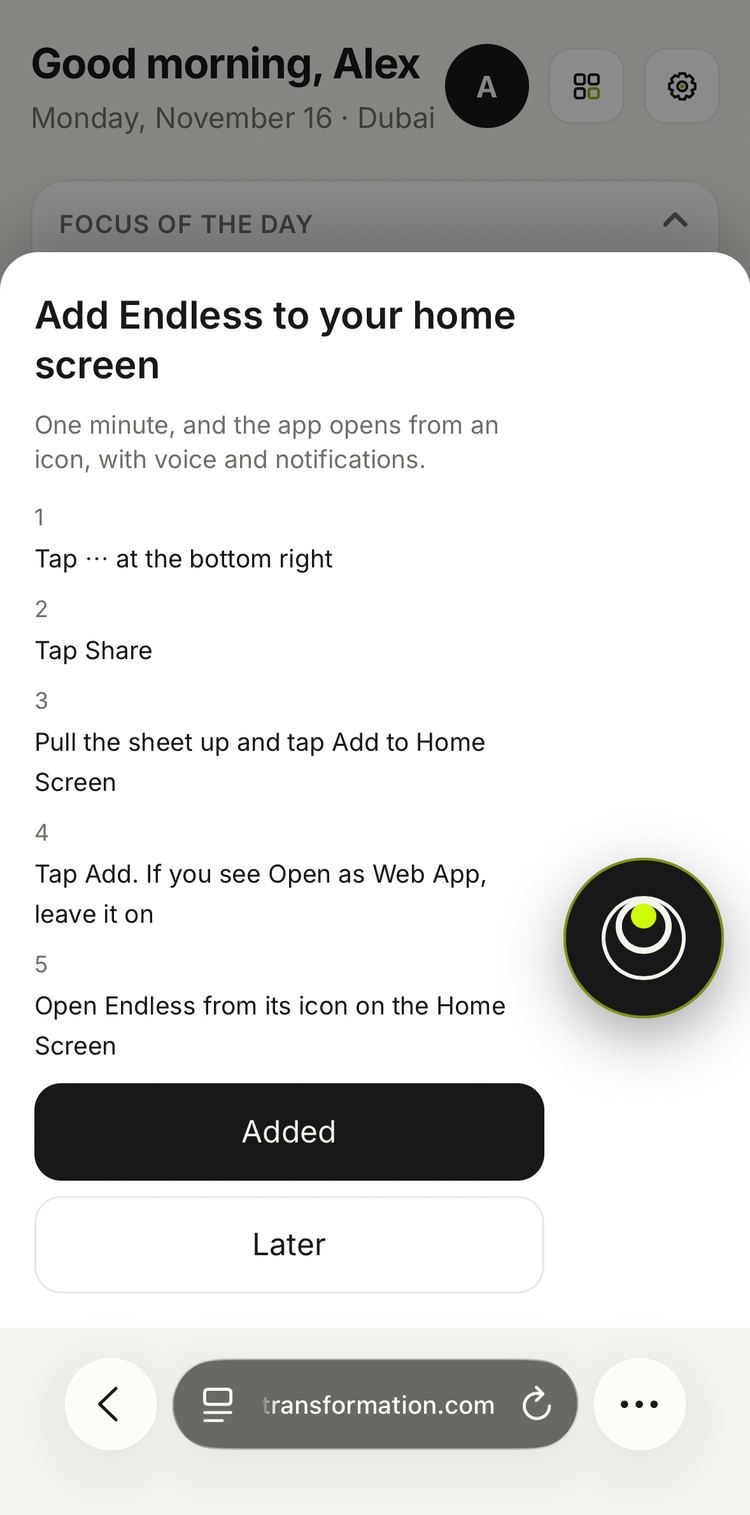
Then in Safari, iOS 26:
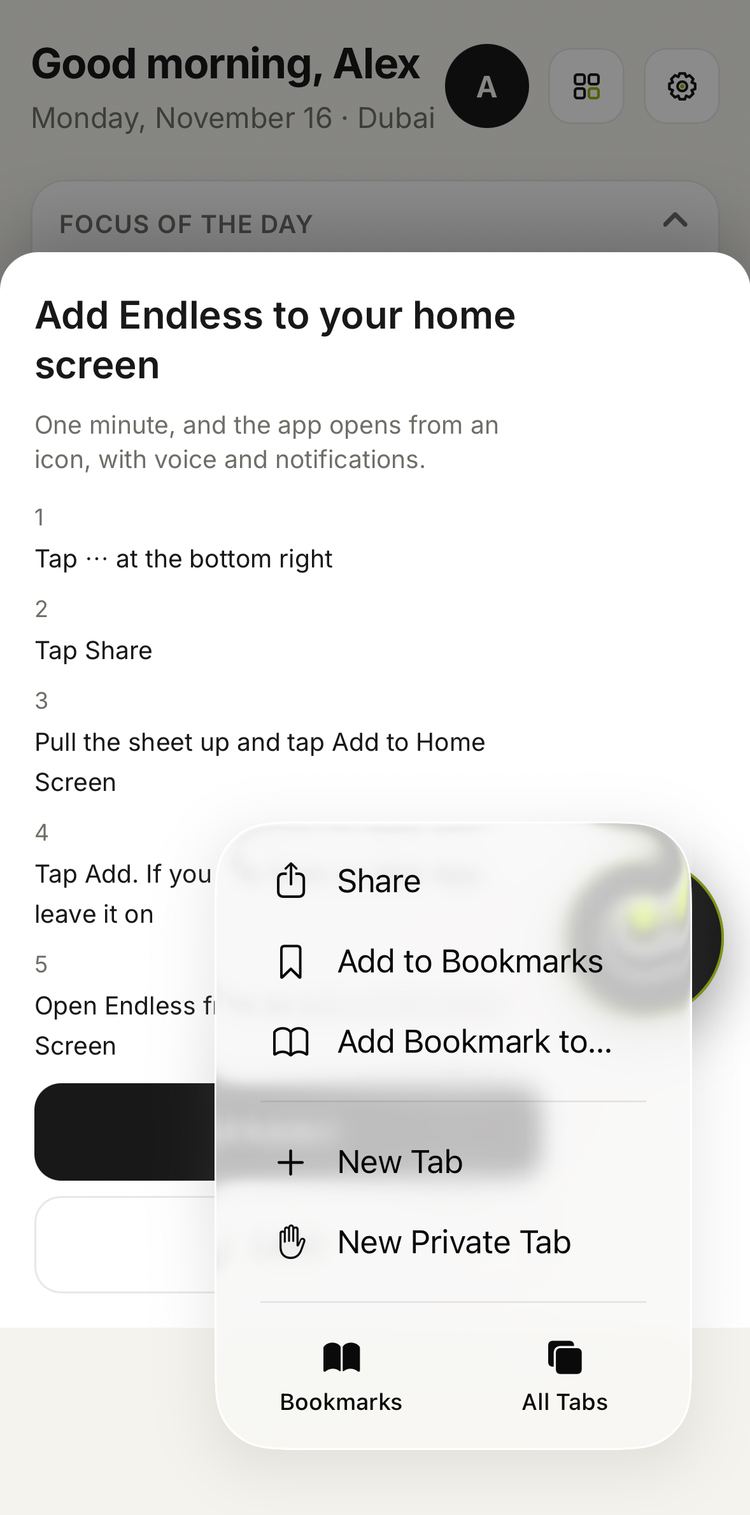
- Tap ⋯ at the bottom right.
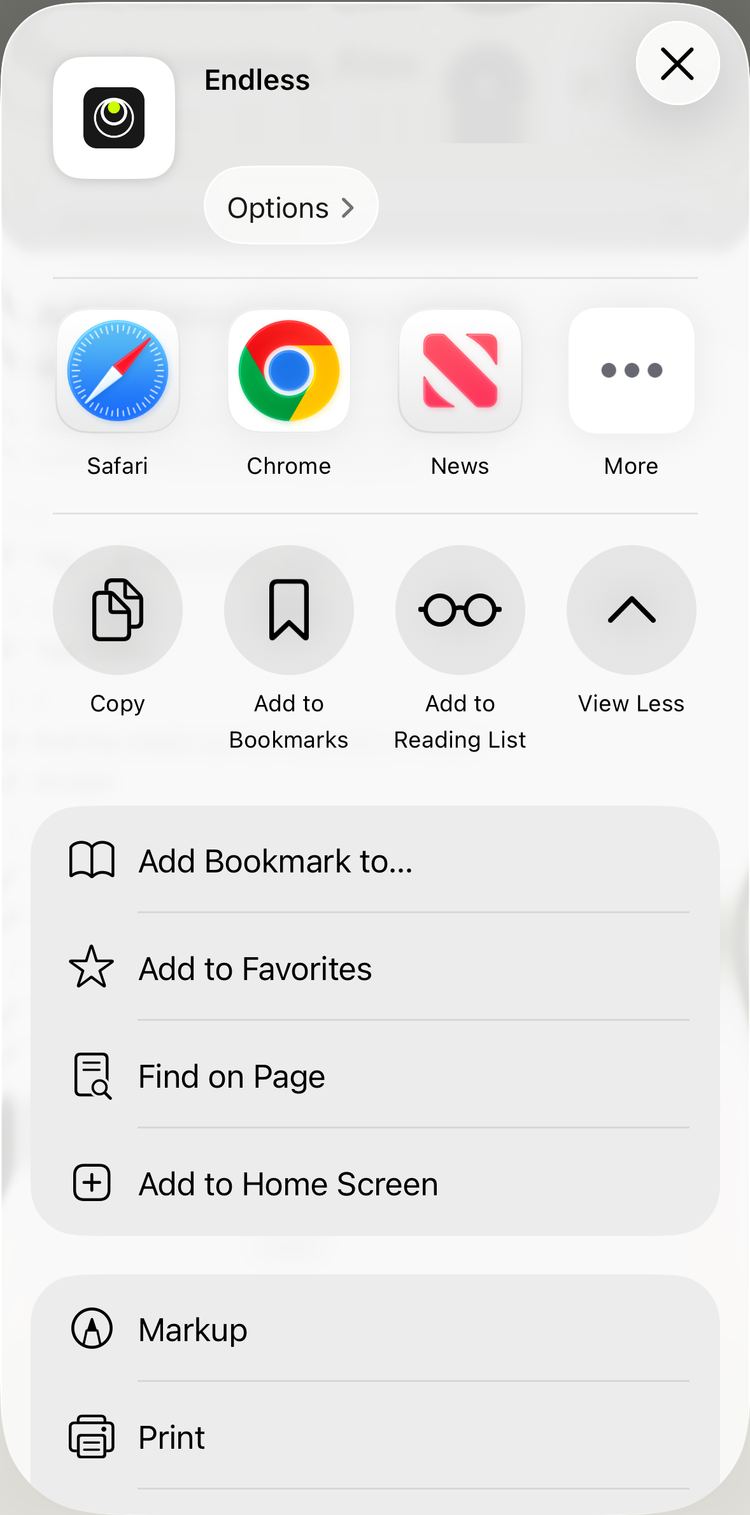
- Tap Share.
- Pull the sheet up and tap Add to Home Screen.
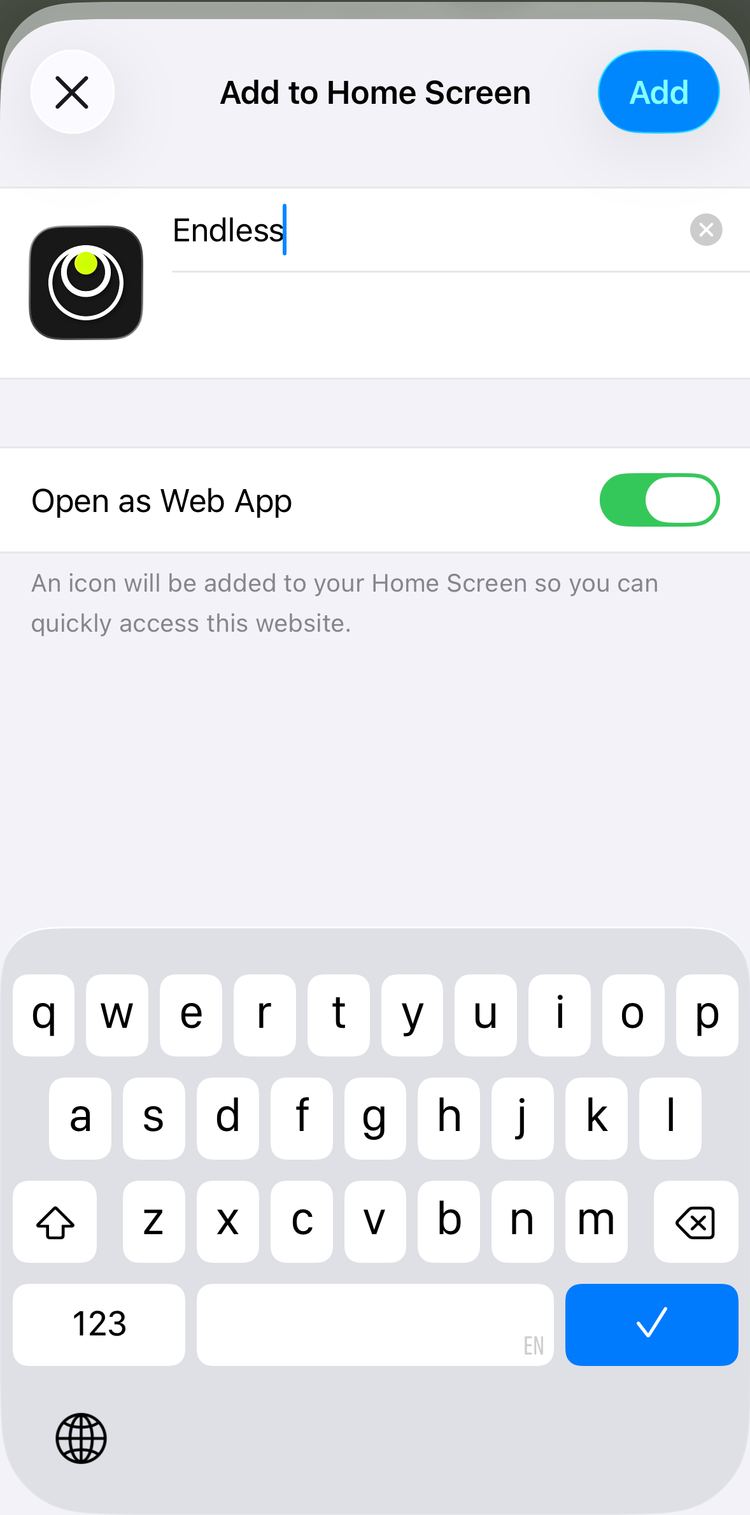
- Tap Add. If you see Open as Web App, leave it on.
- Open Endless from its icon on the Home Screen.
On iOS 18 and earlier, instead of steps 1 and 2:
- Tap Share (the square with an arrow pointing up) at the bottom center.
The Endless icon appears on your home screen. Open it: you usually stay signed in. If the app asks for a code, tap “Send a new link” and the bot sends it in Telegram.
Android
- Did the link open inside Telegram? Tap ⋮ at the top right → Open in Chrome.
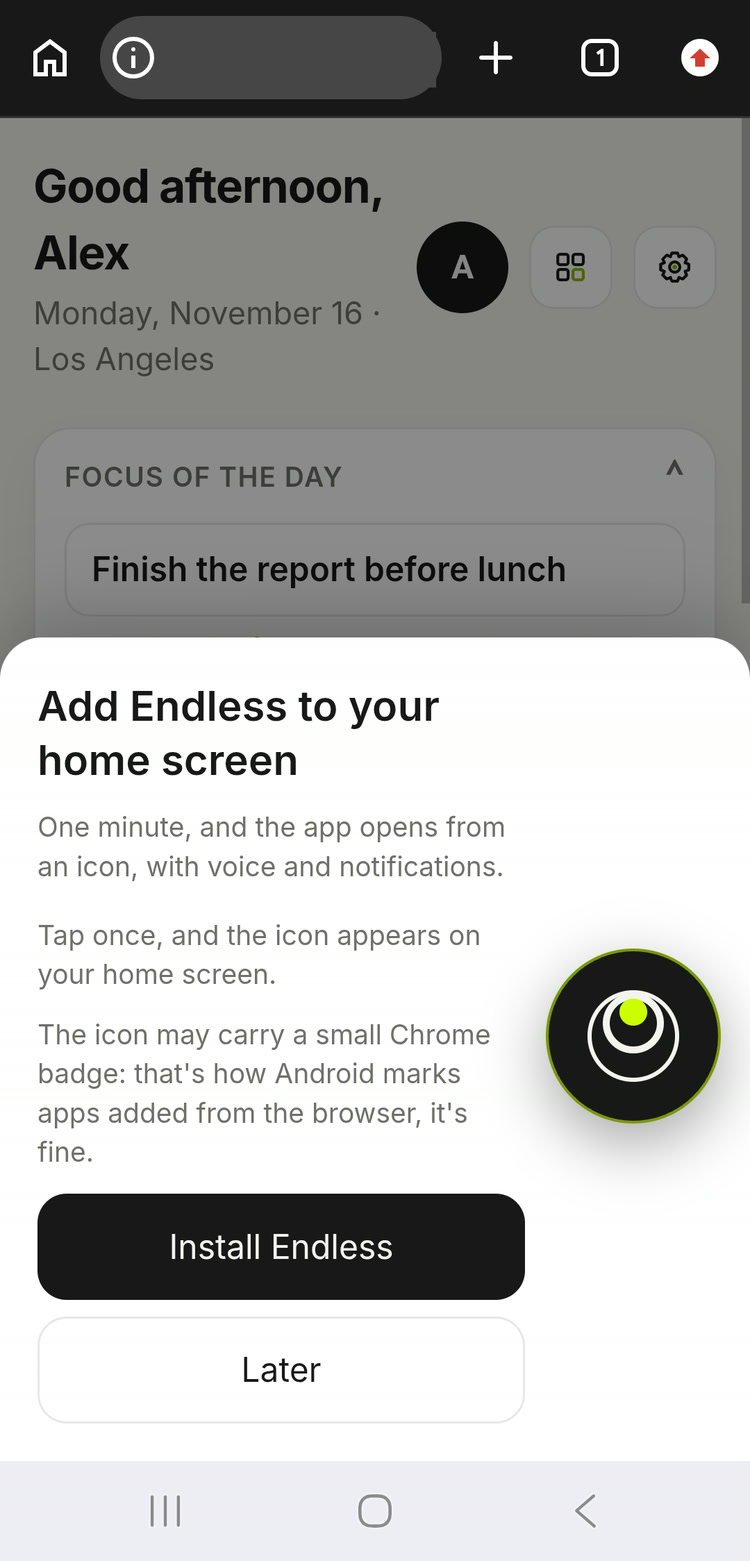
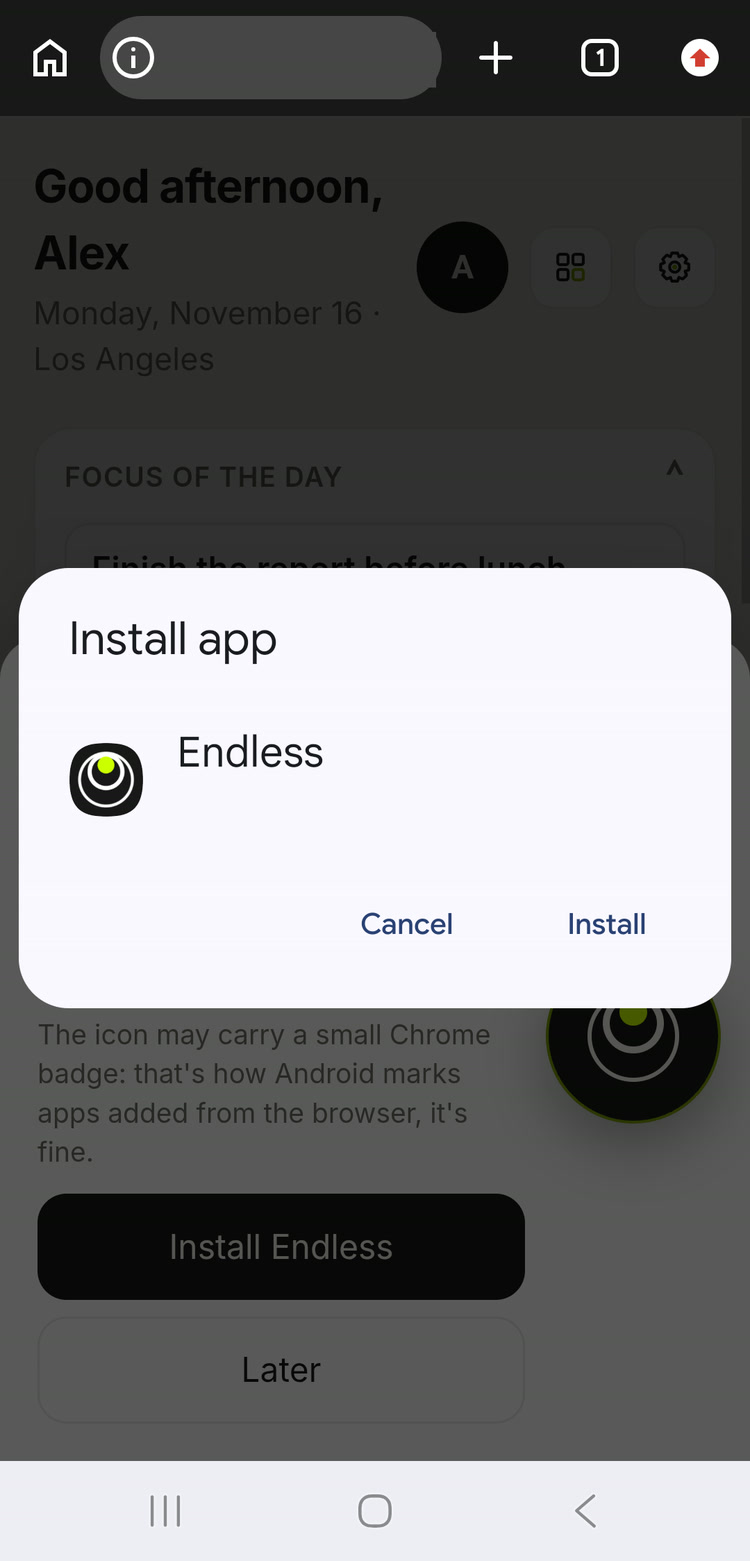
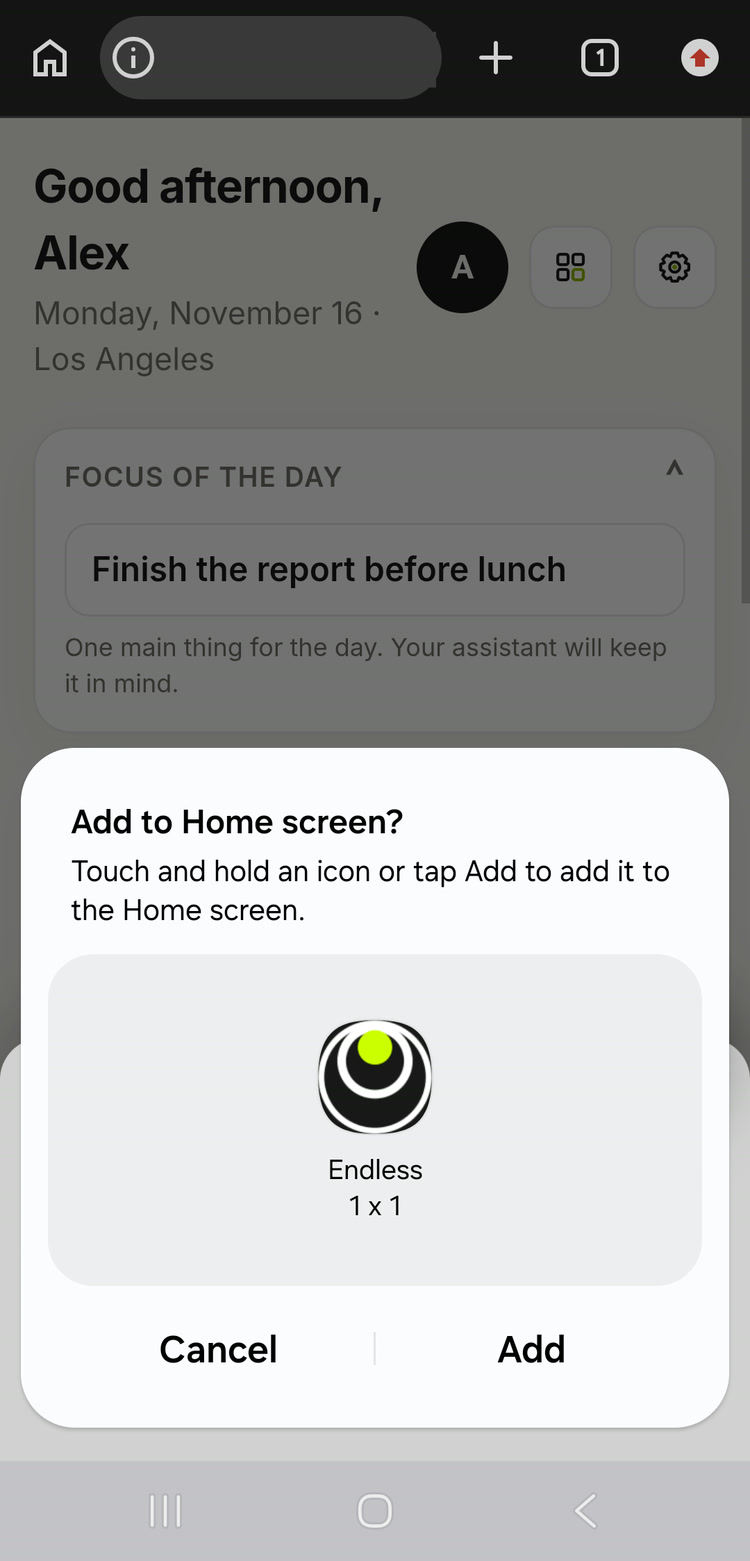
- On the card, tap “Install Endless”. If it isn't there: In Chrome tap ⋮ at the top right, Choose “Install app” (Add to Home screen).
- Confirm “Install”.
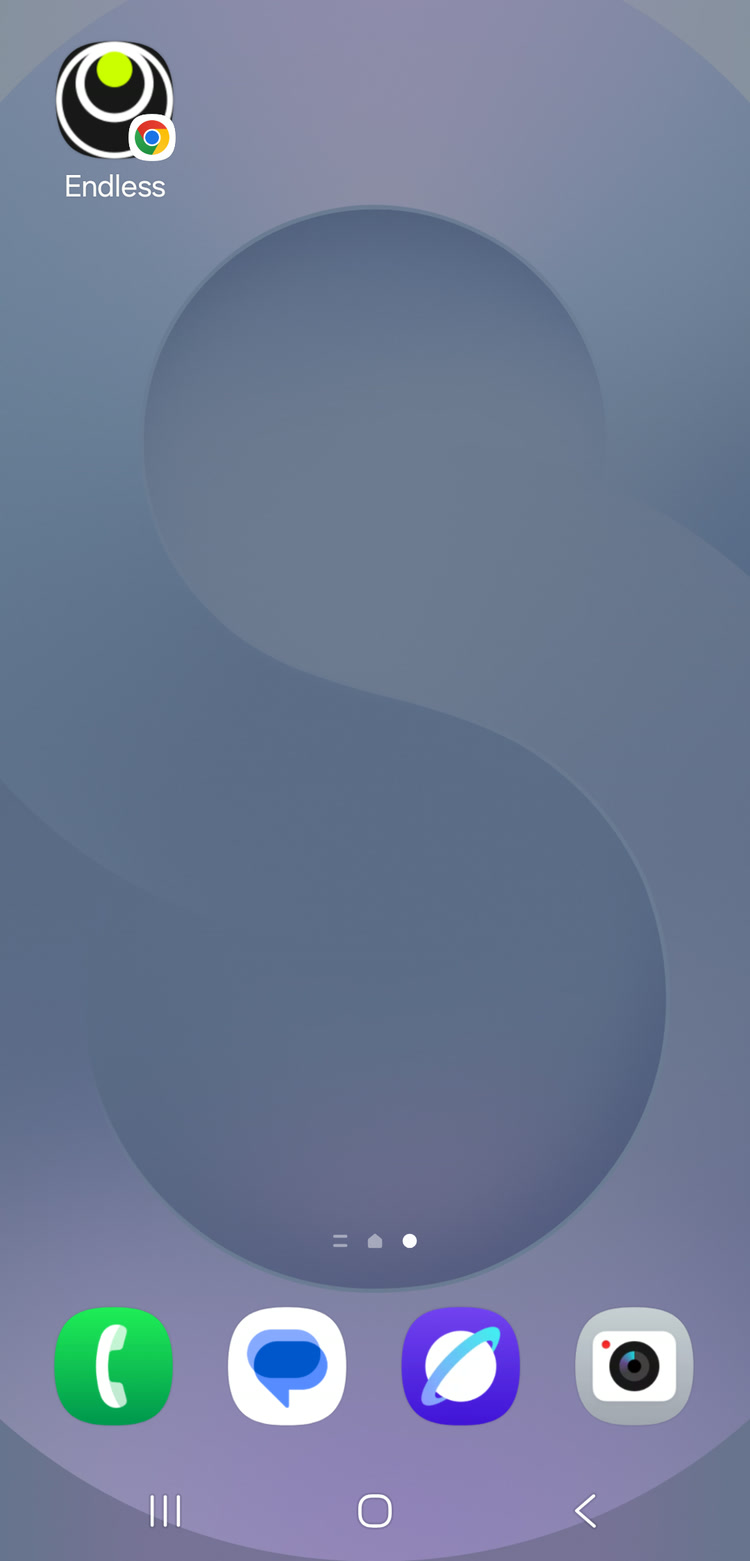
The icon appears on your home screen and you are already signed in. The icon may carry a small Chrome badge: that's how Android marks apps added from the browser, it's fine.
Computer
Endless also opens in a browser on a computer, but the phone is more convenient: voice, camera and reminders live there.
Signing in
The first sign-in goes through the link from Telegram. Safari asks “Sign in as …?”: tap Sign in. This keeps your account safe: a link someone else sent never signs you in on its own. If the link has expired, tap “Send a new link” on the sign-in screen: the bot sends a fresh one and an eight-digit code. New here, no account yet? Start with the bot @endless_ai_bot in Telegram.
The assistant button
The round button with the Endless mark sits at the bottom right of every screen. It's the main way to use Endless. Next to it on Today, Money, Goals, Calendar, Habits, Notes and People there is a round “+”: add an entry by finger on that screen.
- Hold and speak. Hold the button until the recording bar appears at the bottom, then speak. You can let go: recording goes on until you tap the button once more. Then Endless records it, sorts it and answers briefly. You can switch screens while you speak.
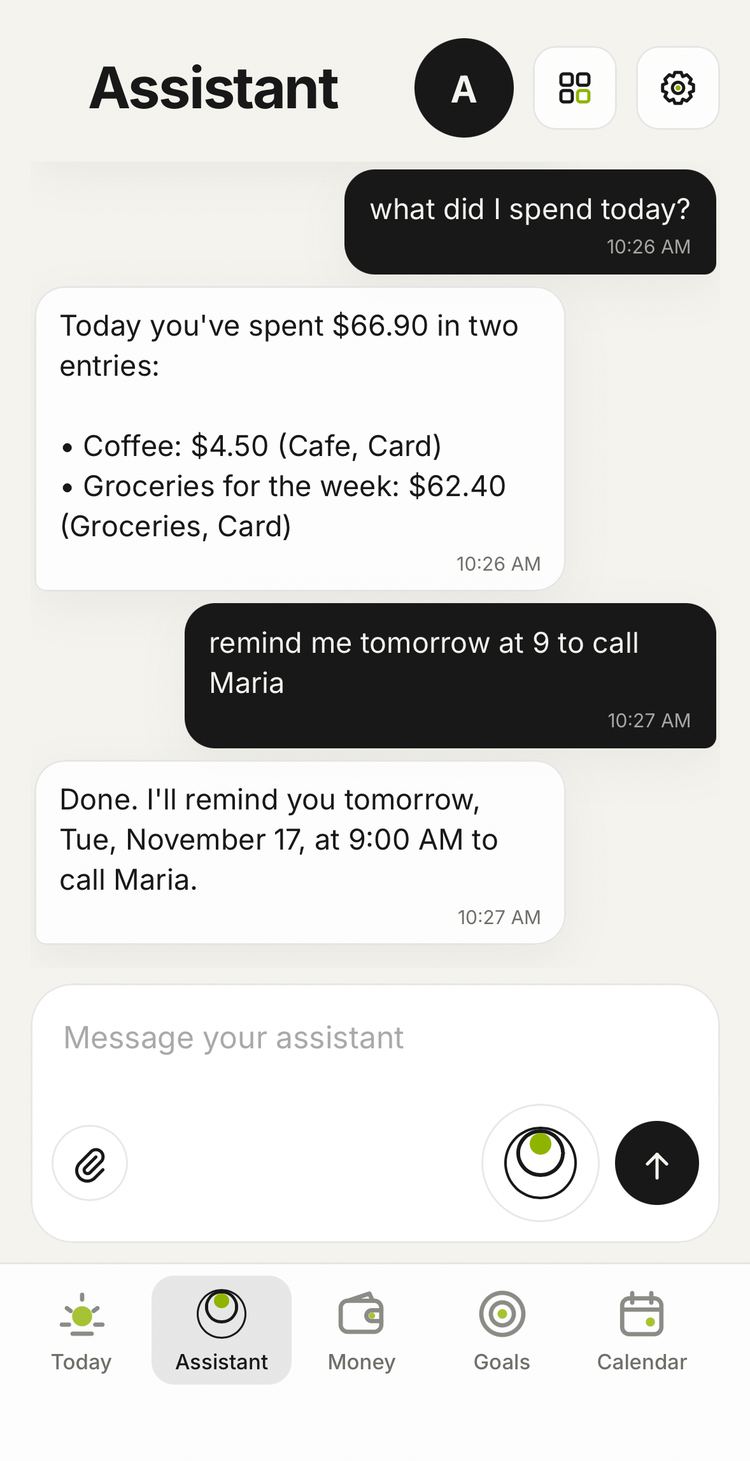
- Tap. The chat with the assistant opens: type, send a photo of a receipt, a document or food, a file or a voice message.
Talk the way you'd talk to a person, in one phrase and without commands: “taxi 12”, “dentist tomorrow at 10”, “slept from midnight to seven”. Several things at once work too: “groceries 34 and log a workout at 7 pm”.
Hands = voice
Endless has one rule: any action can be done by voice and by finger. Tap a line: an edit window opens with Save and Delete. New entries come from the “+ …” button to the right of a card title, like “+ Income” or “+ Account”. The same by voice: “change the taxi to 15”, “delete yesterday's workout”.
Made a mistake? Say “undo” and the last action comes back. Deleted items stay in Settings → Your data → Trash, where you can restore them.
Today
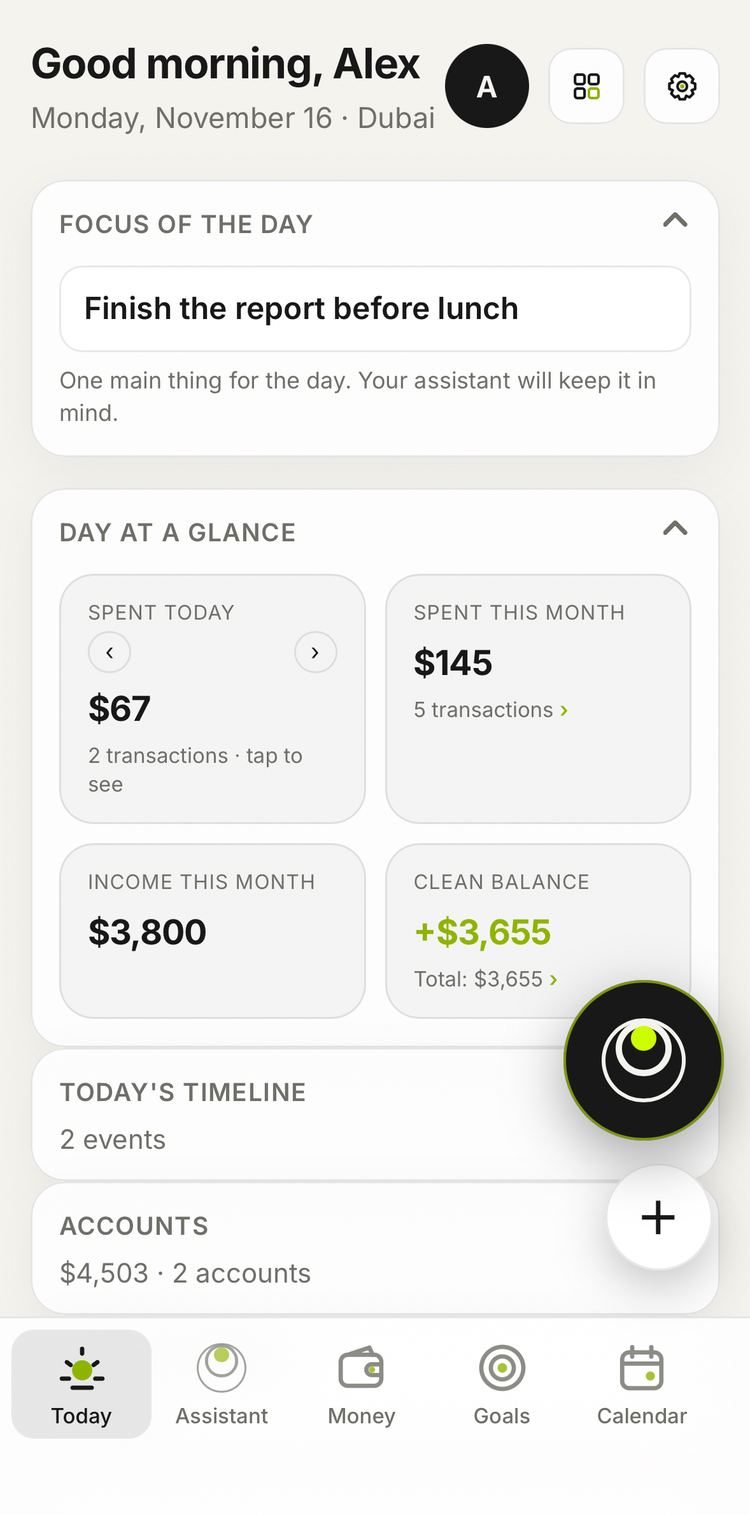
The main screen of the day: the focus of the day, the day's money summary, the day's timeline, today's events and tasks, habits, payments coming up, accounts, goals, budgets, watches and document deadlines.
- “Focus for today: send the report”. That's the one main thing for the day, and the assistant keeps it in mind.
- “What's on today?” gives a short summary.
- In the evening an Evening card appears on Today: go through the day with the assistant and the result goes to your journal.
Cards collapse when you tap their title. Change the order by voice (“move payments to the top”) or by finger: hold a card and drag it.
Money
Tracking spending and income without spreadsheets.
- “Coffee 4”, “salary came in, 3000”, a photo of a receipt.
- “Lunch 120 dirham on my dollar card” is recorded in dirham and converted at that card's rate.
- “Rent 900 every 5th” appears in Payments and the calendar, with a reminder ahead of time.
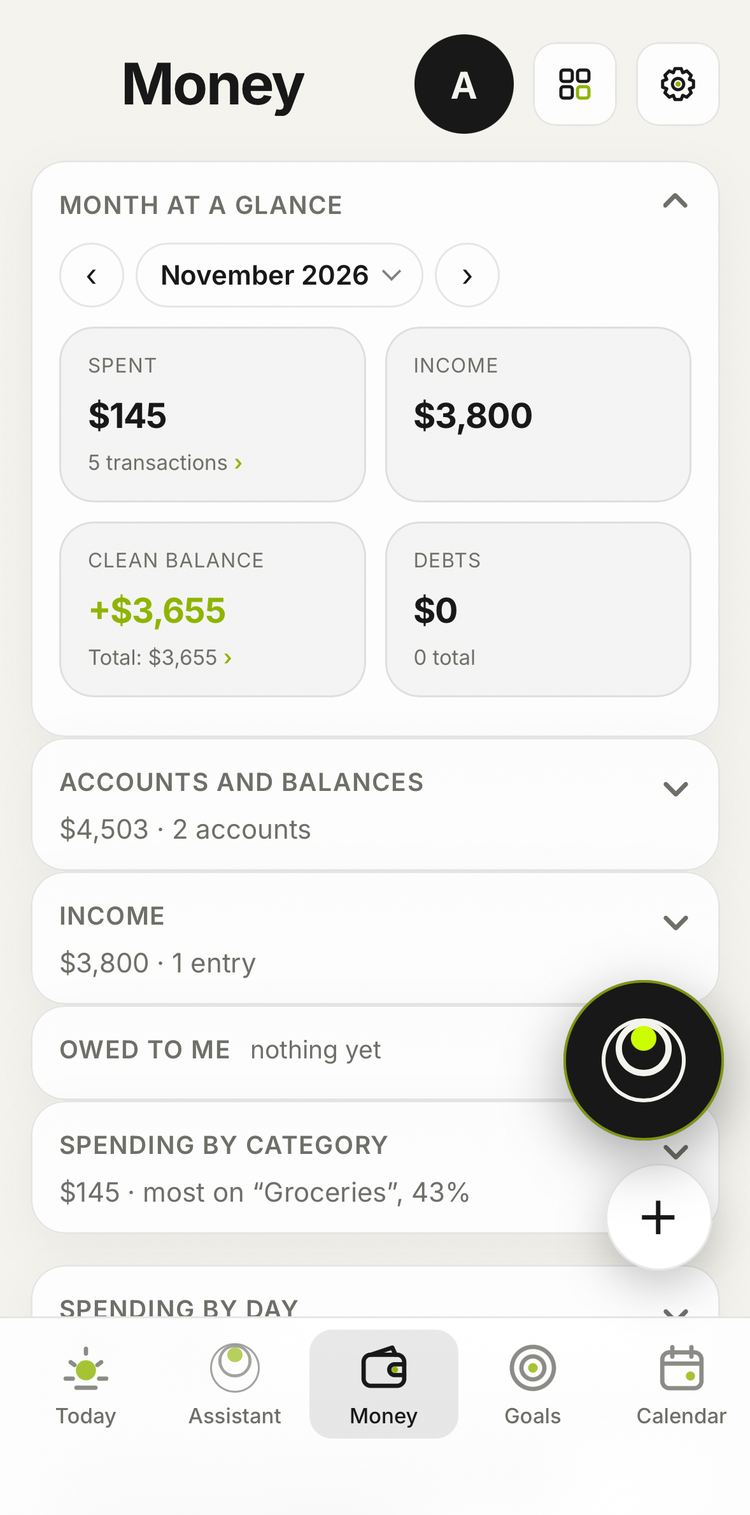
What's on the screen:
- Spent and Income for the month. One-off income, like selling a car, is counted separately so it doesn't distort a normal month.
- Net balance: regular income minus spending for the month, without one-offs. Total balance: the same including one-offs.
- Accounts and balances: how much is on each card and in cash. “Card balance 520” corrects it.
- Budgets: “cafe budget 150 a month”. Endless tells you when a budget is running low.
- Payments: what to pay and when. Switch the period: today, week, month, three months.
- Debts and Owed to me: “lent Boris 50 until Friday”. Endless will remind you.
Calendar
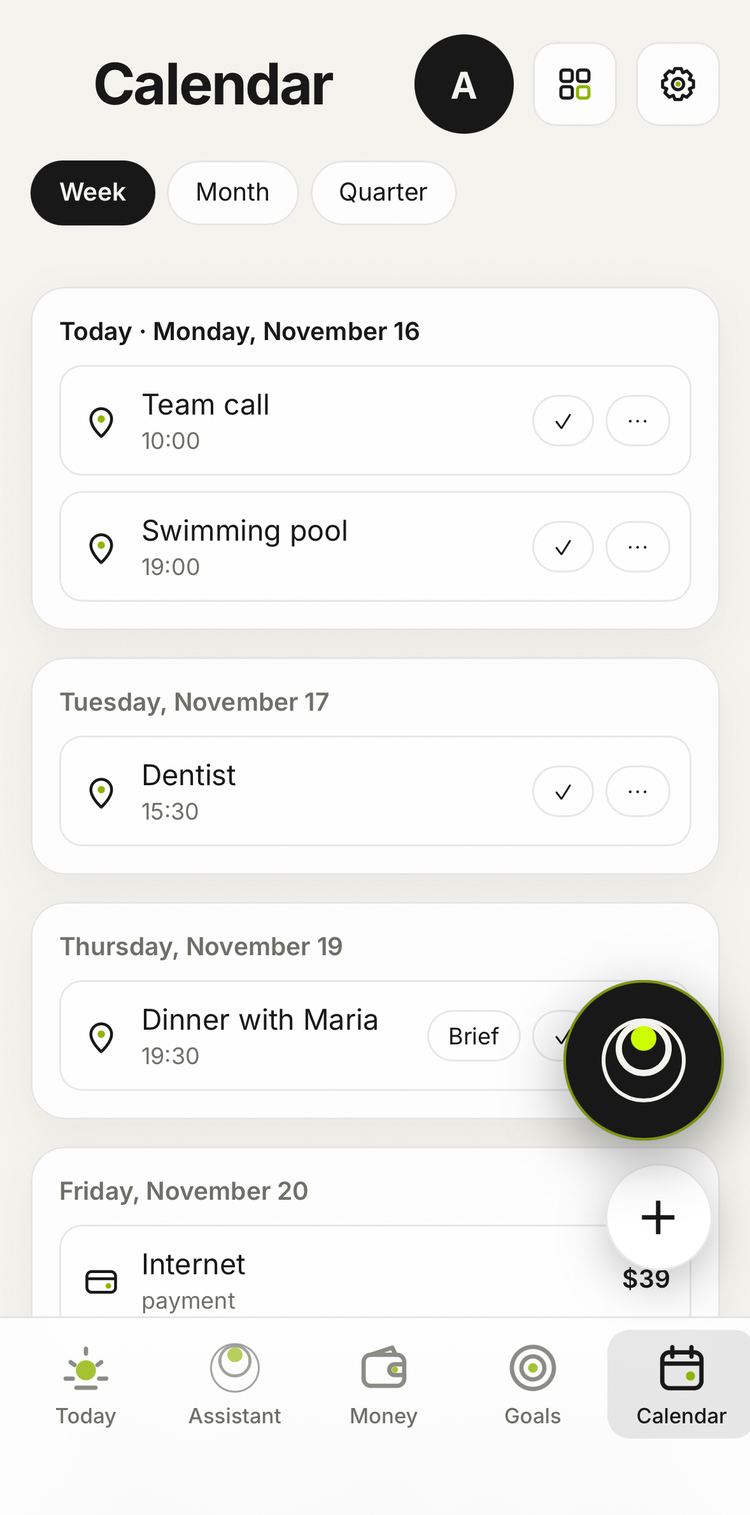
Events, tasks and reminders in one list by day.
- “Dentist tomorrow at 10”, “call the bank on Friday”, “remind me in an hour to turn off the oven”.
- “Move the dentist to Thursday”, “what's on this week?”.
- Google Calendar connects if you want it: “connect Google Calendar”, or Profile → My tools → Google Calendar.
Habits
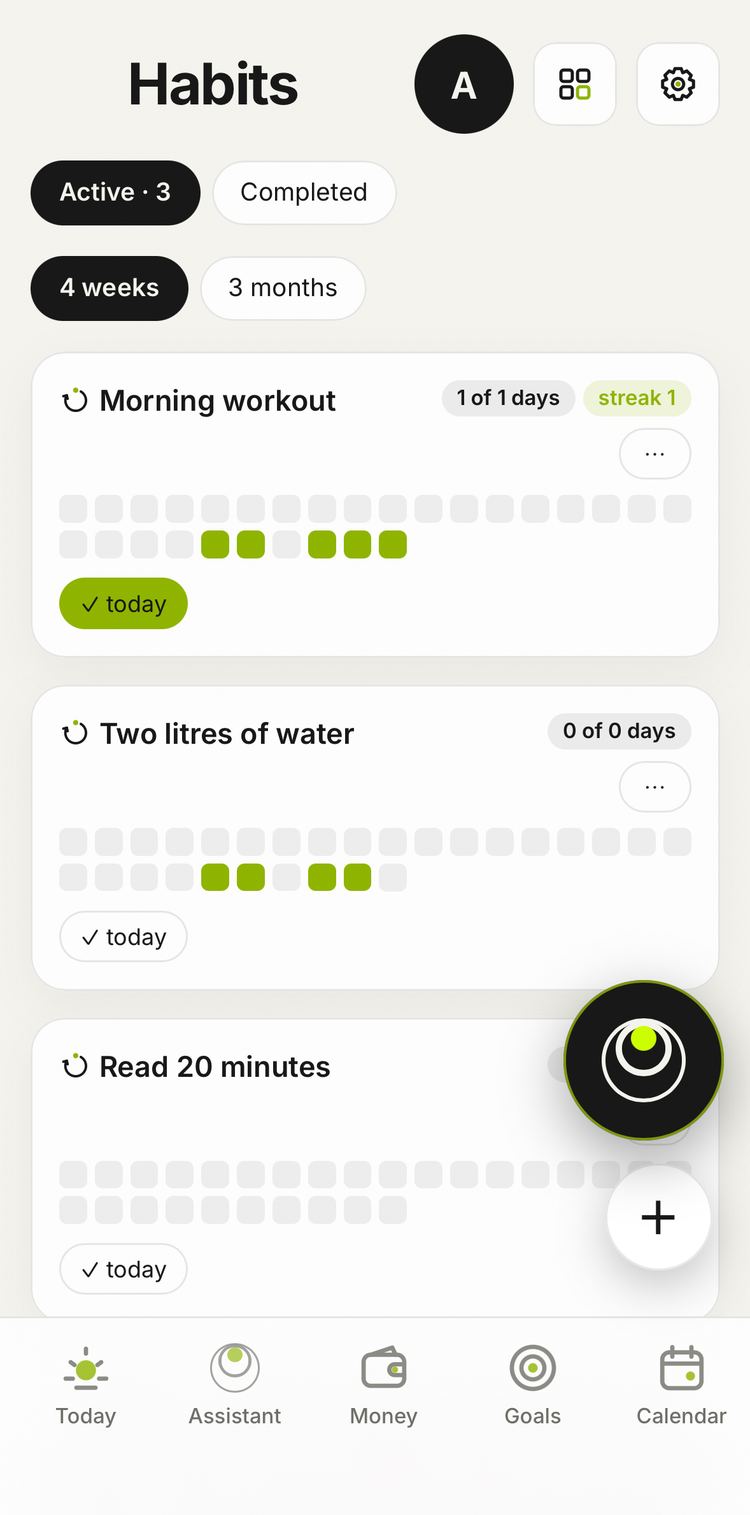
What you do regularly, and medication.
- “Exercise every day at 8”, “vitamin D at 9 and 21”.
- “Push-ups 30, plus 1 a day”: the target grows with every completed day.
- “Did my exercise” or the ✓ button on the habit marks it. Travelling: “pause the habit until Monday”, and the streak won't break.
- Finished a book or a course: “complete the habit”. It moves to completed with its marks and streak.
Goals
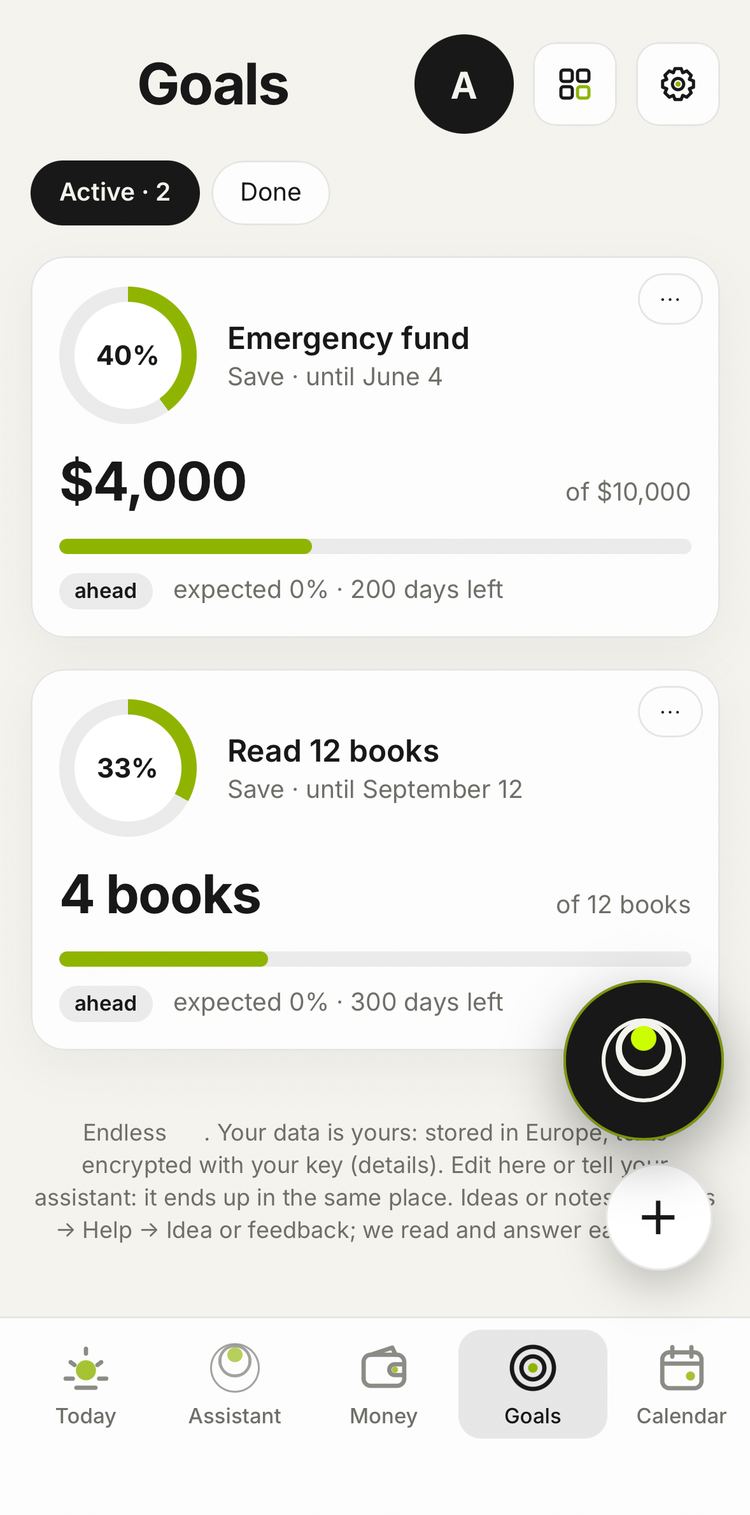
The big things you're working towards: “learn Spanish by summer”, “save 3000 by March”. A goal can be split into steps, Endless shows how it's moving and reminds you if it falls behind. Reached goals move to the Done tab.
Health: body, food, workouts
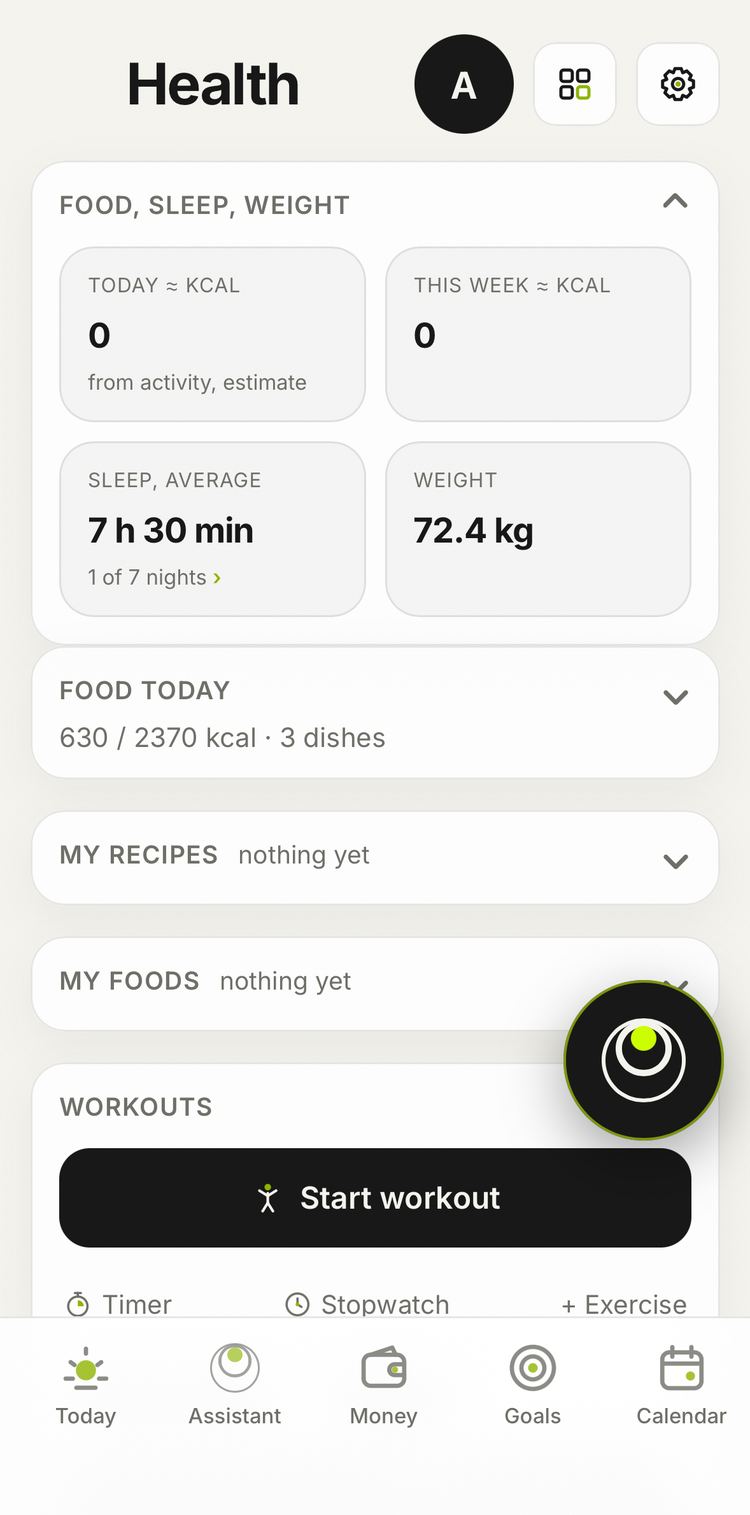
Health is kept only with your separate consent, asked once.
- Body: “ran 5 km”, “12 pull-ups”, “slept from 11:40 pm to 7:10”, “weight 84.2”.
- Food: a photo of your plate or “200 g chicken with rice for lunch”. Endless counts calories and protein and tells you what's left for the day.
- Workouts: at the gym say “started a workout”, then “bench press 40 kg for 12”. The next set is shorter: “45 for 10”. Endless logs the sets and times your rest. “Finished the workout” sums it up.
Mind
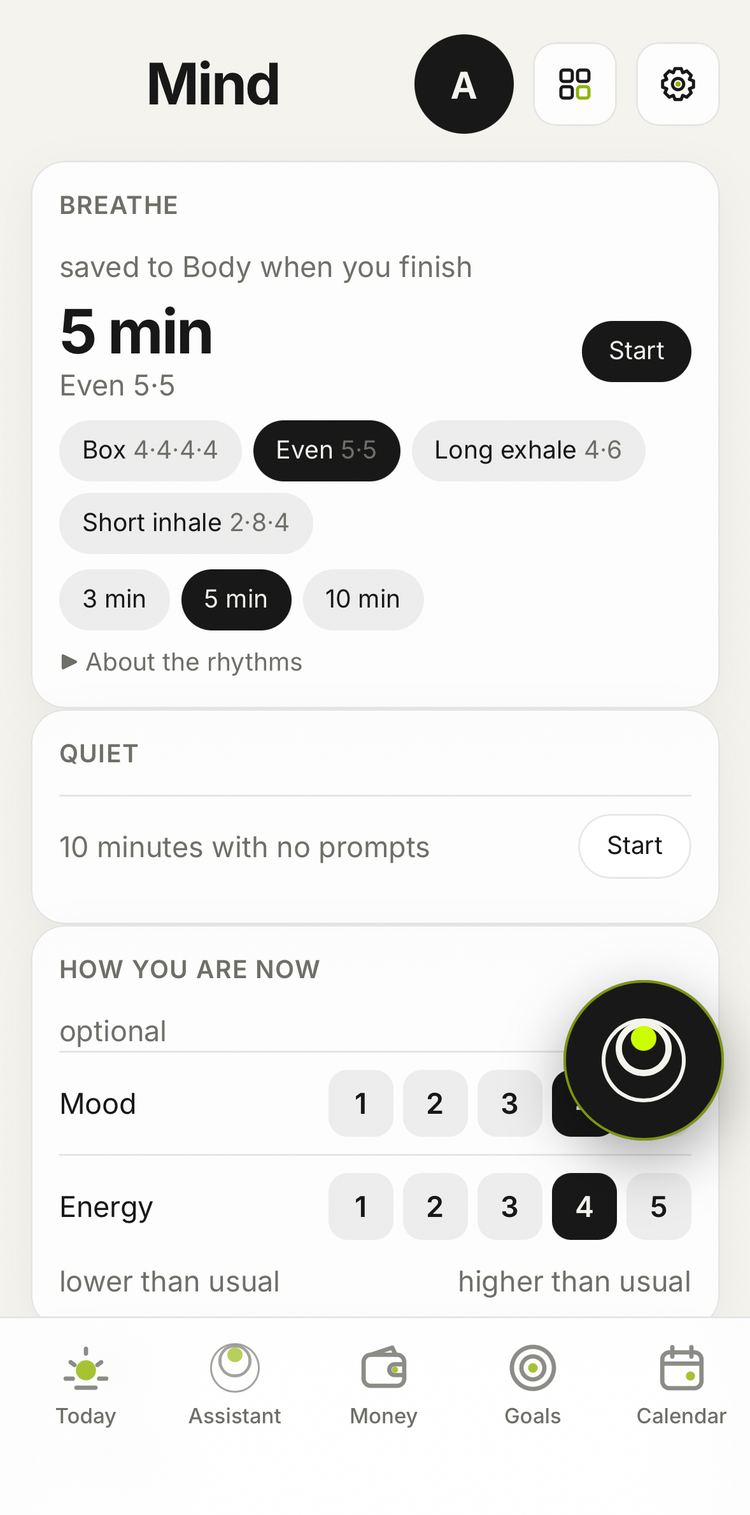
Mood and energy for the day, and breathing exercises.
- “Mood 4, energy 3” or the buttons on the screen.
- “Let's breathe for 5 minutes”, “box breathing” opens a rhythm on the screen.
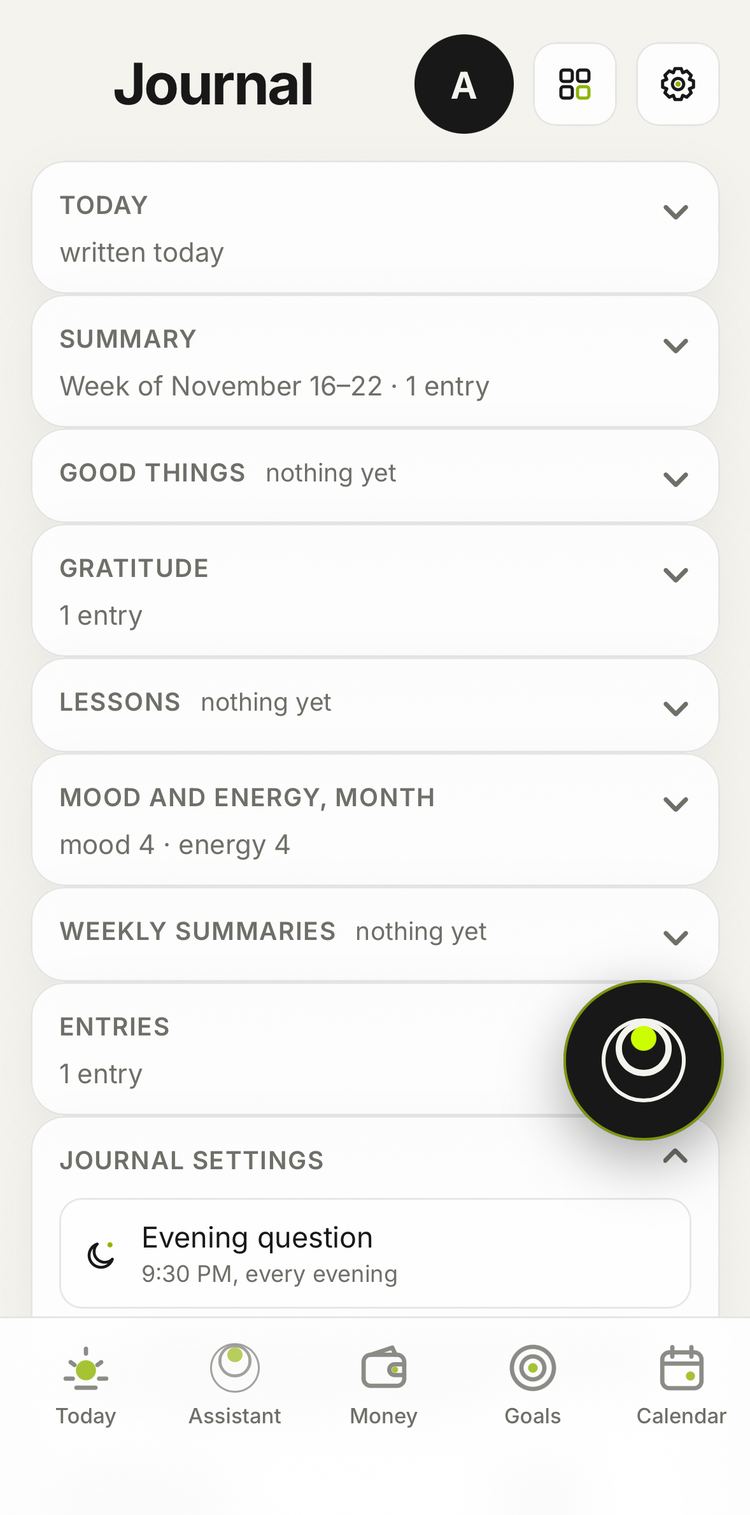
Journal
In the evening Endless asks one question about how the day went. One phrase or a voice message is enough: Endless sorts your answer into good things, gratitude and takeaways.
- “Yesterday was hard, but I finished the project” is an entry for any day.
- “How did the week go?”, “what was good in October?”.
- On Sunday you get a summary of the week.
Documents
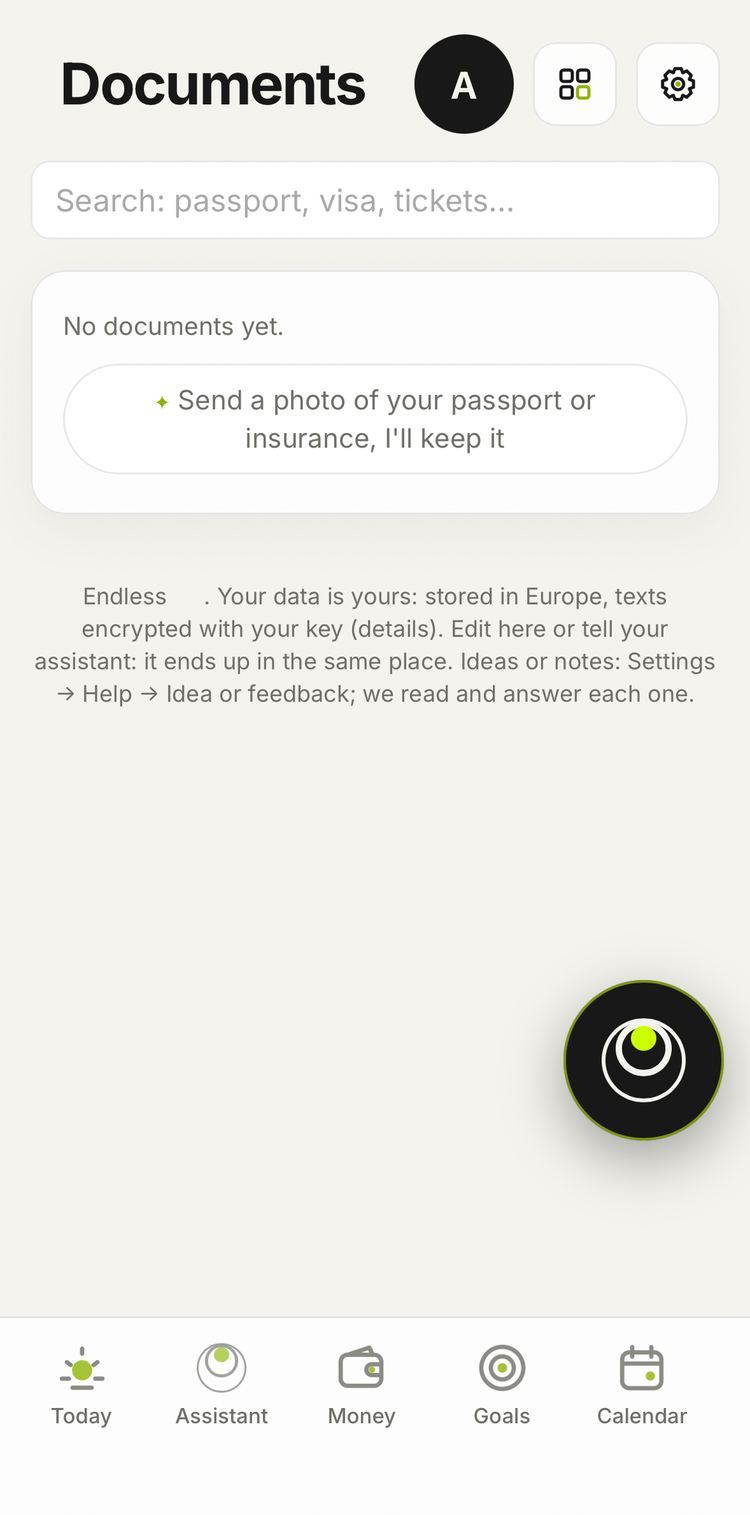
Passport, driving licence, insurance, contracts. Take a photo of a document and send it to the assistant: Endless straightens the scan, reads the number and expiry date and reminds you when it's time to renew.
- “When does my passport expire?”, “show the car insurance”.
People and groups
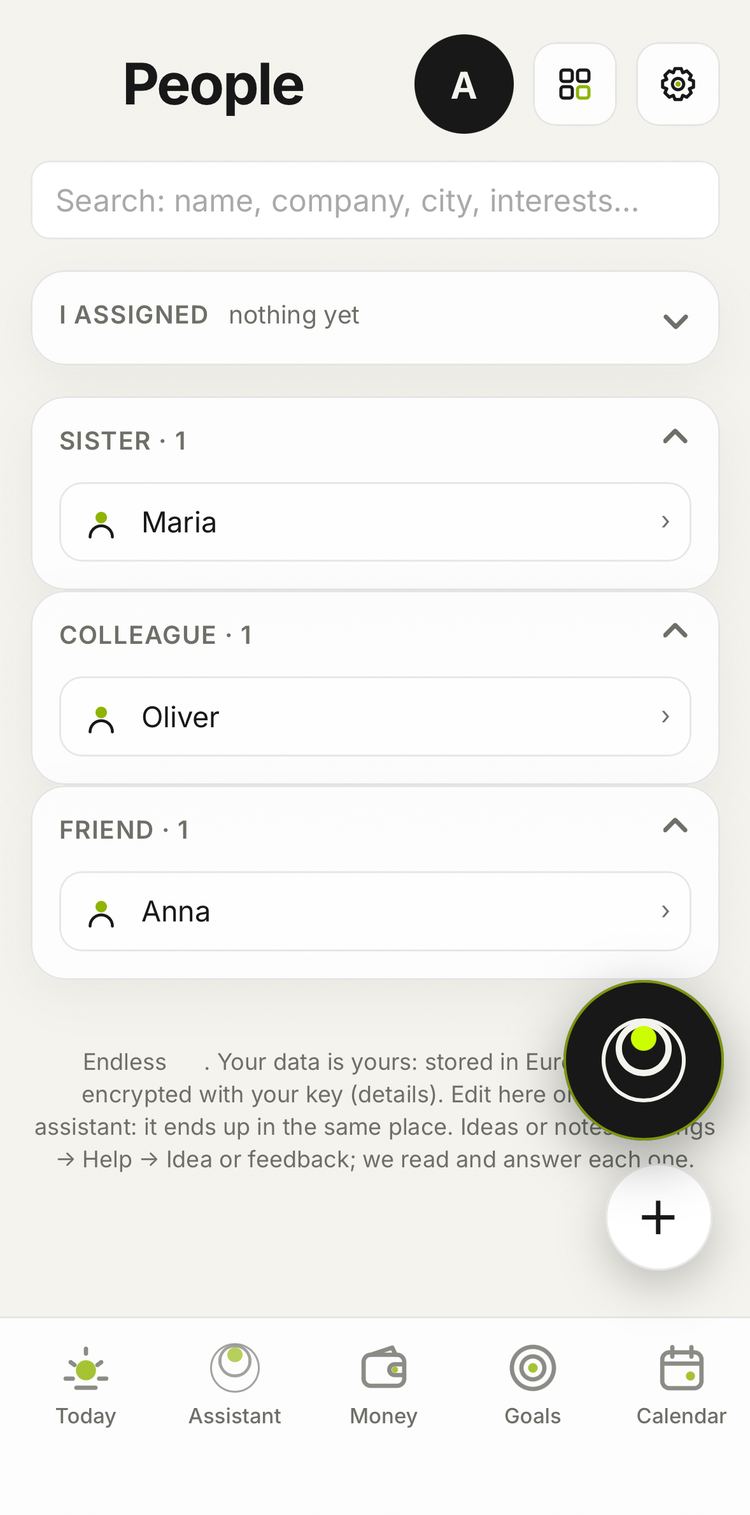
People: who's in your life and what matters about them.
- “Met Boris, he's opening a cafe”, “Vera's birthday is March 12”.
- An hour before you meet someone, Endless sends what you talked about and agreed on.
- “Give Anna a task for tomorrow: send the invoice”. If Anna uses Endless, she accepts or declines and you'll know.
Groups: a shared chat with other people in Endless, shared goals, tasks and decisions. “Create a group Renovation” gives you an invite link.
Notes
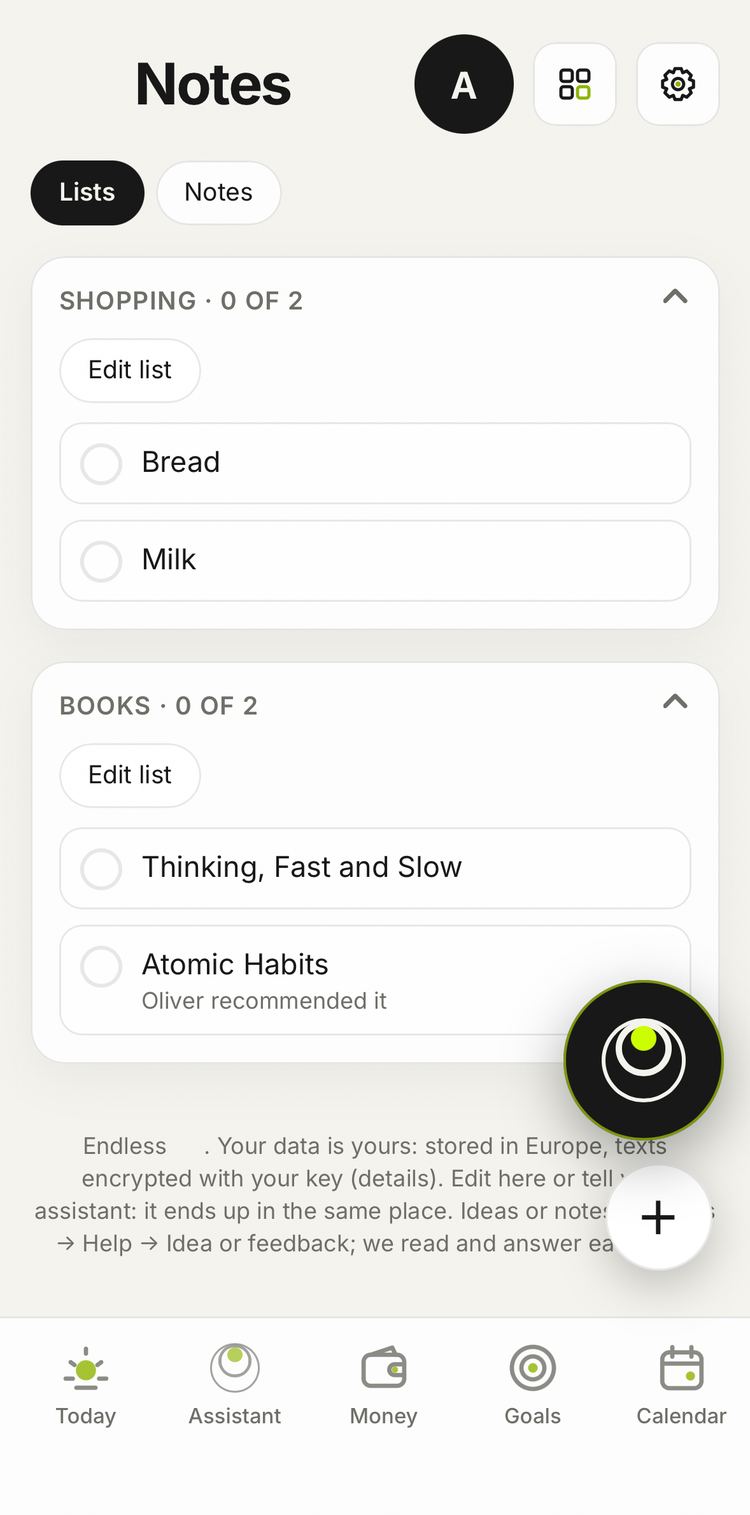
Thoughts, ideas, lists. “Note an idea: a travel podcast”, “packing list: charger, passport, glasses”. Find it later by meaning: “where's that note about sleep?”.
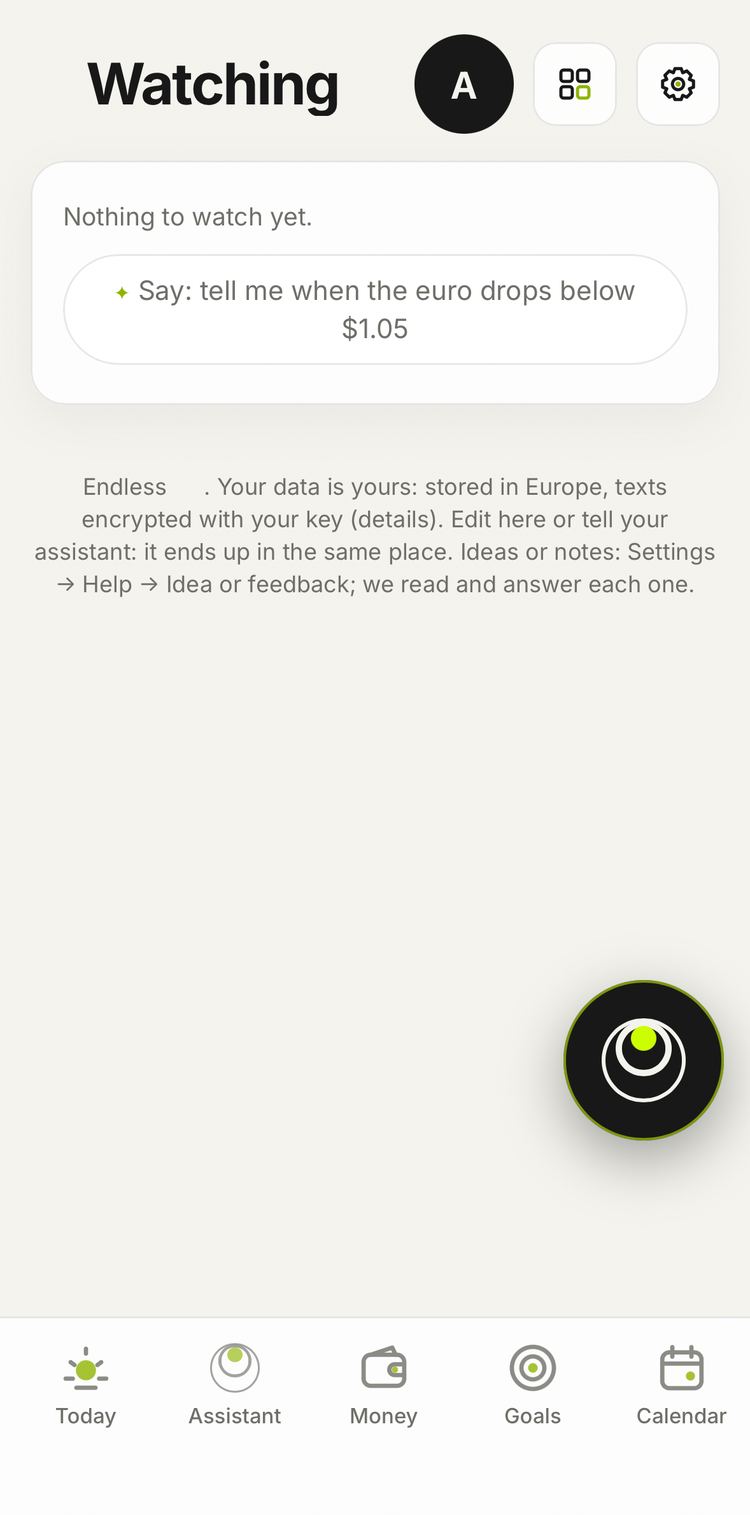
Watching
Endless can keep an eye on things for you.
- “Tell me when Bitcoin drops below $60,000”.
- “Track flight BA 117”: if the flight is delayed, the reminder moves.
- “Send me the weather every morning”.
Endless names the cost of a check in advance.
Meetings
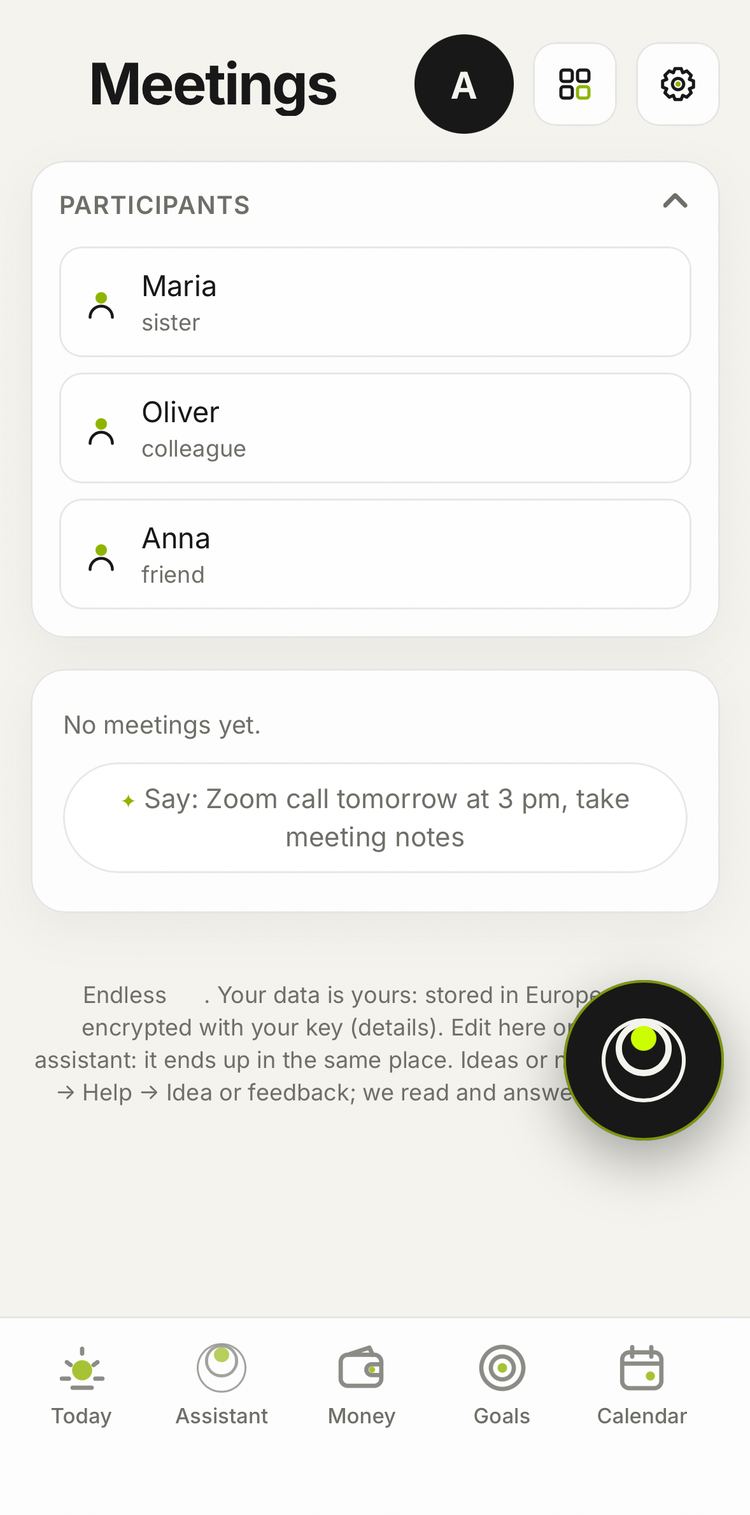
Endless can join a call, record it and send minutes with tasks.
- “Join the call” plus the meeting link.
- After the call: “give task 3 to Anna”, “send the minutes to the participants”.
Endless writes in the meeting chat that it is recording. It tells you the price up front.
Tools: timer, stopwatch, focus
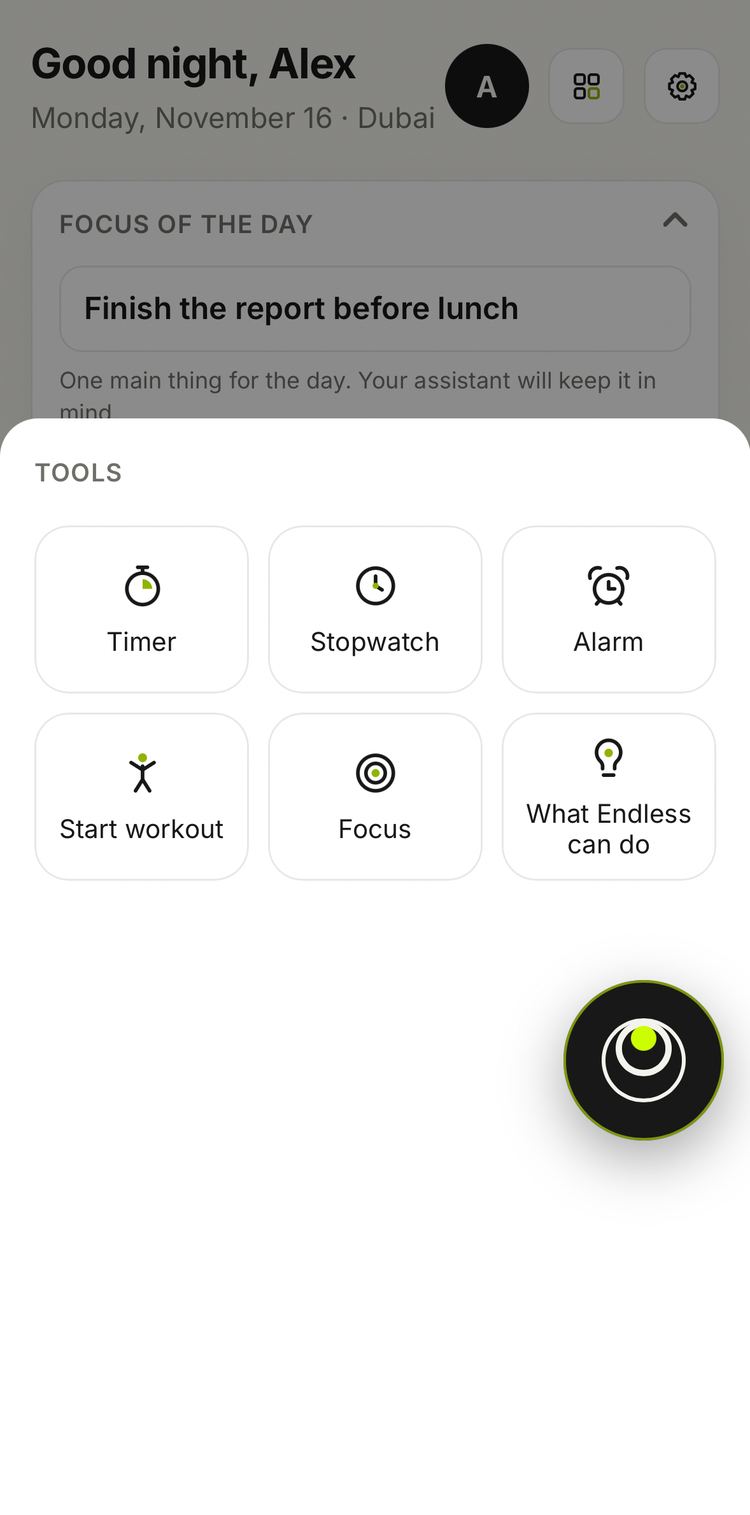
The button with four squares at the top of any screen opens the tools: timer, stopwatch, alarm, workout, focus and What Endless can do.
- “Timer for 3 minutes”, “start a stopwatch”, “plank, stopwatch”.
- Focus: 25 or 50 minutes on one thing. Say what you're focusing on and the time stays in the day's history.
- Name the activity on a timer or stopwatch, like “stretching”, and the time goes to Body. With Focus, name the habit exactly as it's written and it gets marked.
Profile
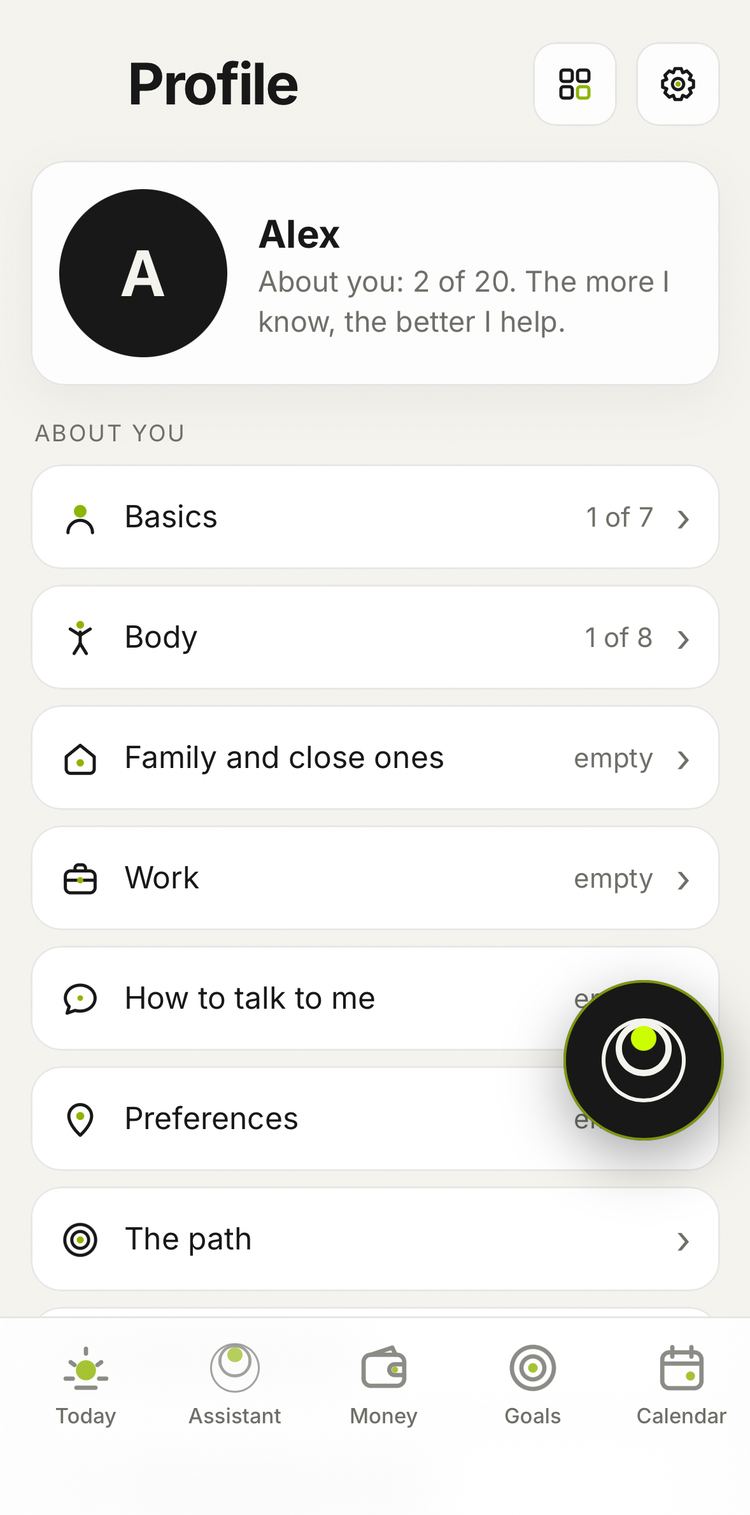
The circle with your initial or photo at the top right opens Profile: About you, The path, What Endless can do, My goals, My tasks and My tools (mail, Google Calendar, Google Drive).
Settings and privacy
The gear at the top of any screen opens settings (on a computer: Settings in the left menu): Language, Appearance, Day and time, Currencies & rates, Screens and blocks, Notifications, Assistant rules, Plan and balance.
- Privacy and consents: what Endless remembers about you. “Don't remember” and “forget …” always work.
- Your data: export everything in one archive, trash, account deletion.
- Help: Guide (this page), How to use Endless (replays the tour), Add to home screen, What Endless can do, Idea or feedback.
Your data is stored on a server in Europe, and texts are encrypted with your own key. Details: what data we keep and where.
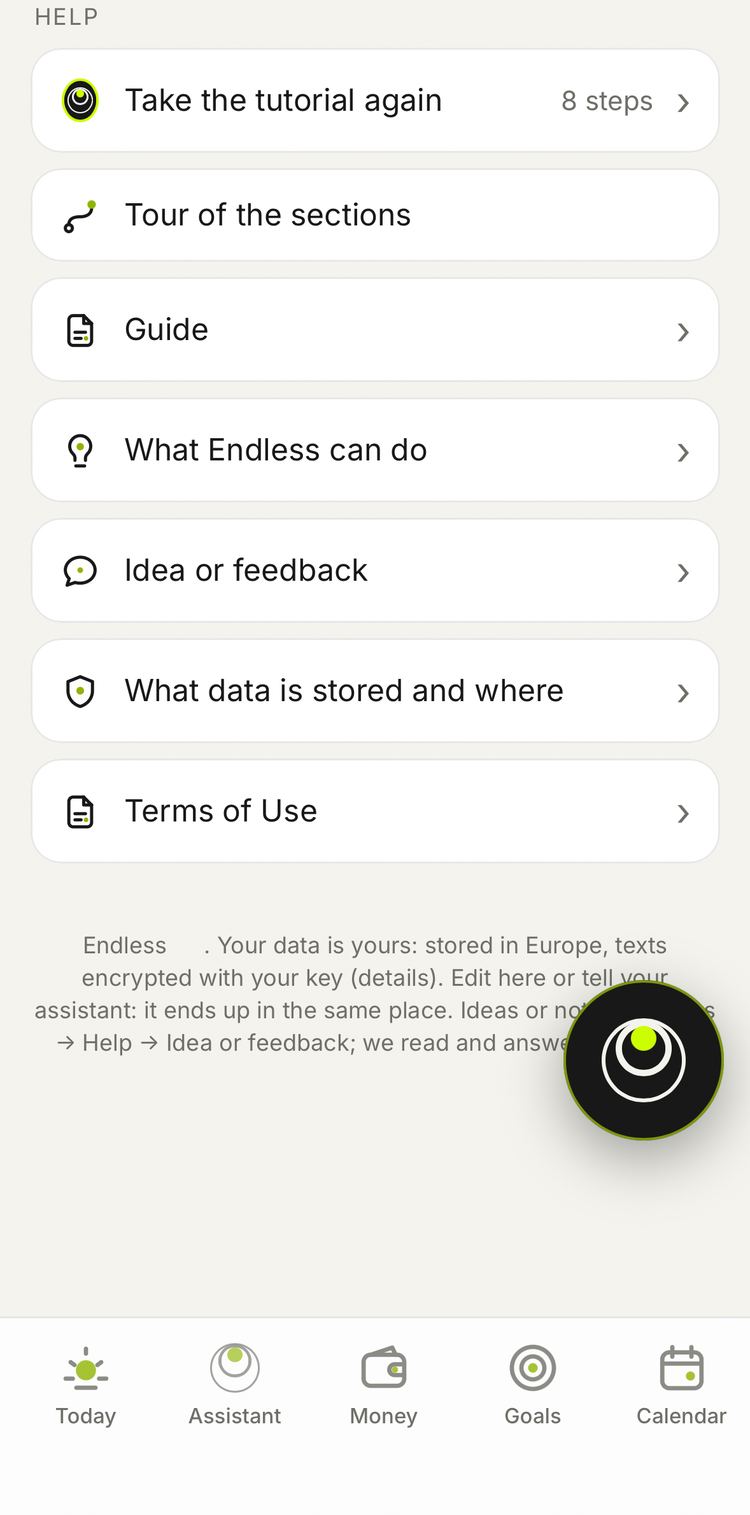
If something's wrong
Tell the assistant what didn't work, or write in Settings → Help → Idea or feedback. We read every message and reply.